Getting Started
Object ID is a secure web app for capturing object identification data and photographs on-site, then editing and exporting at your desk.
Signing In
Open the app in Safari on your iPhone or any web browser. Enter the username and password provided to you.
Working with Clients
Each client has their own collection of objects. Start by creating a client for each engagement.
Creating a Client
- From the home screen, tap New Client.
- Enter the client's full name (e.g., "Pemberton Collection").
- The abbreviation auto-fills from the name. You can adjust it — this abbreviation is used in photo filenames.
- Optionally enter the Appraisal Type (e.g., "Insurance" or "Loss and Damage"). This appears on the client page for reference.
- Tap Create.
Clients
New ClientEditing a Client
At the bottom of the client page, tap Edit Client Name to change the client name, abbreviation, or appraisal type.
Deleting a Client
A Delete button appears on the client page only when the client has no objects. Remove all objects first to delete a client.
Adding Objects
Each piece of art is an "object" with its own ID number, data fields, and photographs.
Creating an Object
- Open a client, then tap New Object.
- Fill in the core fields: Artist, Title, Medium, and Sight Size. Only fill what you know — empty fields are hidden automatically.
- Tap Dimensions or Description to expand additional fields like Sheet Size, Framing, Condition, Cultural Significance, and more.
- Tap Save & Photograph to save the object and go directly to photo capture. Or tap Save to return to the object detail.
New Object
Taking Photos
The heart of the app. Capture mode is designed for fast, reliable on-site photography with your iPhone.
Entering Capture Mode
From any object, tap the Photos button. The screen changes to a gray background — this is capture mode.
The Shot Types
Before each photo, select what you're shooting. This labels the photo automatically.
| Overall | Full view of the piece in its frame or mounting |
| Signature | Close-up of the artist's signature or marks |
| Condition | Areas of damage, foxing, discoloration, or restoration |
| Verso | The back — labels, stamps, gallery stickers, stretcher bars |
| Detail | Any notable detail — brushwork, texture, provenance marks |
| Other | Anything else — enter a custom caption when selected |
Taking the Photo
- Select the shot type for your next photo.
- Tap the camera button. Your iPhone camera opens.
- Take the photo and tap Use Photo.
- Watch for the green checkmark ✓ on the thumbnail. This means your photo has been saved to the server successfully.
- Select the next shot type and continue. When finished, tap Done.
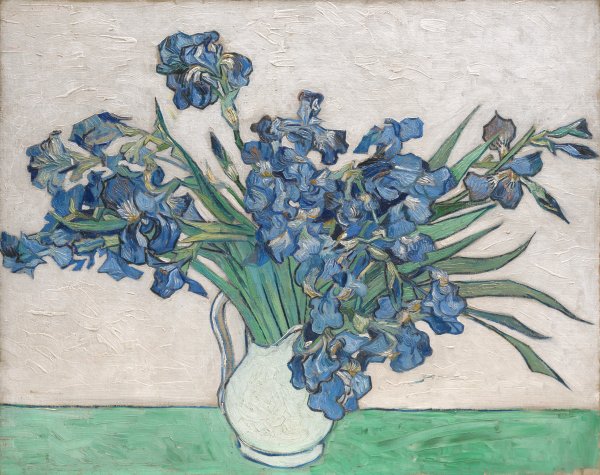 ✓
✓
 ✓
✓
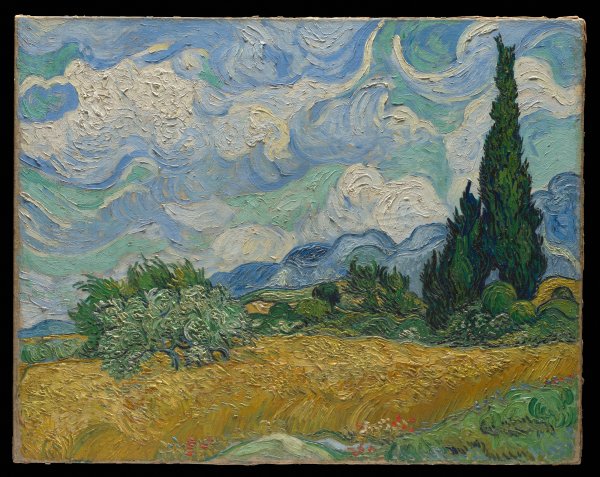 ✓
✓
Viewing & Editing
Review your work on-site or at your desk. Tap any object to see all its data and photos.
The Object Detail Page
Each object page shows the title prominently at top with the artist below it. An eyebrow label reads "Object N Identification." On desktop, the primary photo appears large in a right-hand column alongside your data fields.
“Irises”
Viewing Photos Full-Screen
Tap any photo — either the hero image or a thumbnail — to open the lightbox. Use the arrow buttons or swipe to move between photos. Photos crossfade smoothly as you navigate. Tap the × or tap outside the photo to close.
Editing an Object
Tap Edit on any object to update its fields. When you're done, tap Save.
Navigating Between Objects
Use the ‹ #1 and #3 › arrows on any object detail page to move to the previous or next object without going back to the list.
Deleting an Object
At the bottom of the object page, tap Delete Object. This permanently removes the object and all its photos.
Comparables
Track comparable sales for each object — auction records, dealer prices, and market data that support your appraisal.
Adding a Comparable
- From an object detail page, scroll down to the Comparables section and tap + Add Comp.
- Fill in the details: Title, Artist, Sale Price, Sale Date, Seller & Location, and optional fields like Lot Number, Dimensions, Condition, and Notes.
- Tap Save.
Viewing a Comparable
Tap any comp card on the object page to see its full detail. On the comp page you'll see:
- A ← back link to the parent object at the top
- All comparable fields in the left column
- Photos and documents in the right column on desktop
Uploading Comp Photos
On the comparable detail page, tap the Upload Photo button at the top of the page. You can upload auction catalog images, screenshots, or any reference photo. The first photo appears large as a hero image, with additional photos shown as thumbnails below.
Uploading PDFs
In the Documents section of a comparable, tap Upload PDF to attach auction catalog pages, condition reports, or other supporting documents. You'll be prompted for an optional source label (e.g., "Christie's Catalog").
Editing & Deleting
Tap Edit to modify a comparable's fields. Tap Delete to permanently remove it along with all its photos and documents.
Field Settings
Customize which fields appear for each client. Different engagements need different data.
At the bottom of any client page, tap Field Settings. You'll see a grid of all available object fields with toggles for each:
- Displayed — Whether the field appears on the object form at all
- Above Fold — Whether the field shows in the main section or is tucked under an expandable group
- Big Input — Whether to use a tall textarea instead of a single-line input (useful for Condition, Subject, and other narrative fields)
Changes are saved per client. A client focused on insurance appraisal might show different fields than one focused on loss and damage.
Reordering Fields
Drag the ⠿ grip handle on the left of any row to move it up or down. On iPhone, use the ↑ ↓ arrow buttons that appear beside each field name instead.
Time Tracker
Track billable time per client. Start with one tap — the timer follows you from page to page until you stop it.
The Nav Bar Indicator
A small clock icon sits in the top-right corner of the nav bar at all times. It has two states:
Starting a Timer
- Tap the clock icon in the nav bar, or tap Timer in the breadcrumb on any page.
- Choose a client from the dropdown. Your most-recently used client is pre-selected.
- Optionally type a description — what you're working on.
- Optionally tap + project to add a project name. Useful if you work across multiple engagements for the same client. The field autocompletes from past entries.
- Tap Start. The green dot appears in the nav bar immediately.
While the Timer is Running
The timer page shows a large monospace counter and your client name. You can update the description at any time — changes are saved when you stop.
Stopping
Tap Stop on the timer page. The entry is saved immediately and appears in the list below with its duration and times.
The Entry List
Entries are grouped by date with a daily total on the right. Tap any row to expand an inline editor where you can adjust start/end times, description, project, or delete the entry.
Manual Entry
Tap + Add manual entry to log time for work you did without starting a timer. Select a client, enter the date, start time, and end time. Optionally add a description and project.
Idle Detection
If you start a timer and then set your phone down, Object ID watches for inactivity. After 5 minutes without any taps, scrolls, or keystrokes, a banner appears at the bottom of the screen:
Stop at HH:MM sets the stop time to the moment you last touched the screen — not the current time. So if you put the phone down at 2:43 and checked it at 2:50, the entry records 2:43 as the end, not 2:50.
Tap Keep Running to dismiss. The banner won't reappear for another 5 minutes.
Long-Running Timer Recovery
If you open the app and find a timer that has been running for more than 4 hours, a recovery dialog appears automatically:
Timer still running
Timer for Waitt Collection has been running for 6+ hours.
- Stop Now — stops at the current time
- Stop at Last Activity — stops at the time you last used the app (saved automatically when you close the browser)
- Keep Running — dismiss; timer continues
- Discard — deletes the entry entirely, for when the time is meaningless
Exporting Data
Get your data out of the app and into your reports, AI tools, or archives.
Copy Info
On any object detail page, tap Copy Info at the bottom of the page. The object's data is copied as formatted text — ready to paste into Word, an email, or a ChatGPT conversation.
Title: "Irises"
Medium: Oil on canvas
Date or Period: 1890
Condition: Pristine. No visible damage or restoration.
Photos:
PEMB_001_01_overall.jpg
PEMB_001_02_detail.jpg
PEMB_001_03_verso.jpg
Copy All for AI
At the bottom of the client page, tap Copy All for AI to copy every object in one block — ideal for pasting into ChatGPT or another AI tool for analysis, drafting, or comparison.
Download ZIP
At the bottom of the client page, tap Download ZIP to get a complete export package containing:
- photos/ — all photos, named by object and shot type
- data/ — individual text file per object
- {Client}_all_objects.md — all objects in one document
- {Client}_objects.csv — spreadsheet-ready data, opens in Excel or Numbers
Download Backup
At the bottom of the home screen (client list), tap the Download Backup link. This saves the entire database and all photos as a single ZIP file — your complete safety net.
Add to Home Screen
Make Object ID feel like a native app on your iPhone — no browser bar, instant access from your home screen.
- Open the app in Safari on your iPhone.
- Tap the Share button (the square with an arrow at the bottom of the screen).
- Scroll down and tap Add to Home Screen.
- The name "Object ID" will be pre-filled. Tap Add.
The app icon will appear on your home screen. Tap it to open Object ID in full-screen mode — no address bar, no tabs, just the app.
Troubleshooting
Most iPhones work perfectly with Object ID right out of the box — no setup needed.
Unsupported Photo Format
If you see an error about an unsupported photo format when uploading, your iPhone is saving photos in HEIF format (.heic files) instead of JPEG. Here's how to fix it:
- Open Settings on your iPhone.
- Scroll down and tap Camera.
- Tap Formats.
- Select Most Compatible.
This setting uses slightly more storage on your iPhone but ensures every photo works perfectly with Object ID and with any other software you use.
Slow Uploads
On cellular connections, large photos may take a few seconds to upload. Wait for the green checkmark before taking the next photo. If an upload fails, a Retry button will appear — your photo is not lost.
Session Expired
If you're redirected to the login page, your 8-hour session has expired. Sign in again and continue where you left off — all previously saved data and photos are still there.